
Work the queue
For reviewers. How-to.
This guide shows how to find the case you want to look at next, and how to move through the app without the mouse. It is about order and speed. The tool never writes to OpenStreetMap, and lanes only order the queue: every case stays in the list, nothing is hidden, nothing closes by itself and nothing is posted by itself.
You need the app open on the queue. Signing in is not needed to browse. Recording decisions needs a reviewer role.
Read the queue
Section titled “Read the queue”The queue lists cases newest first inside each lane. Each row shows the changeset number, the editor, the place, what the mapper said, the counts of created, modified and deleted elements, a band, the status, and how long ago the case was created.
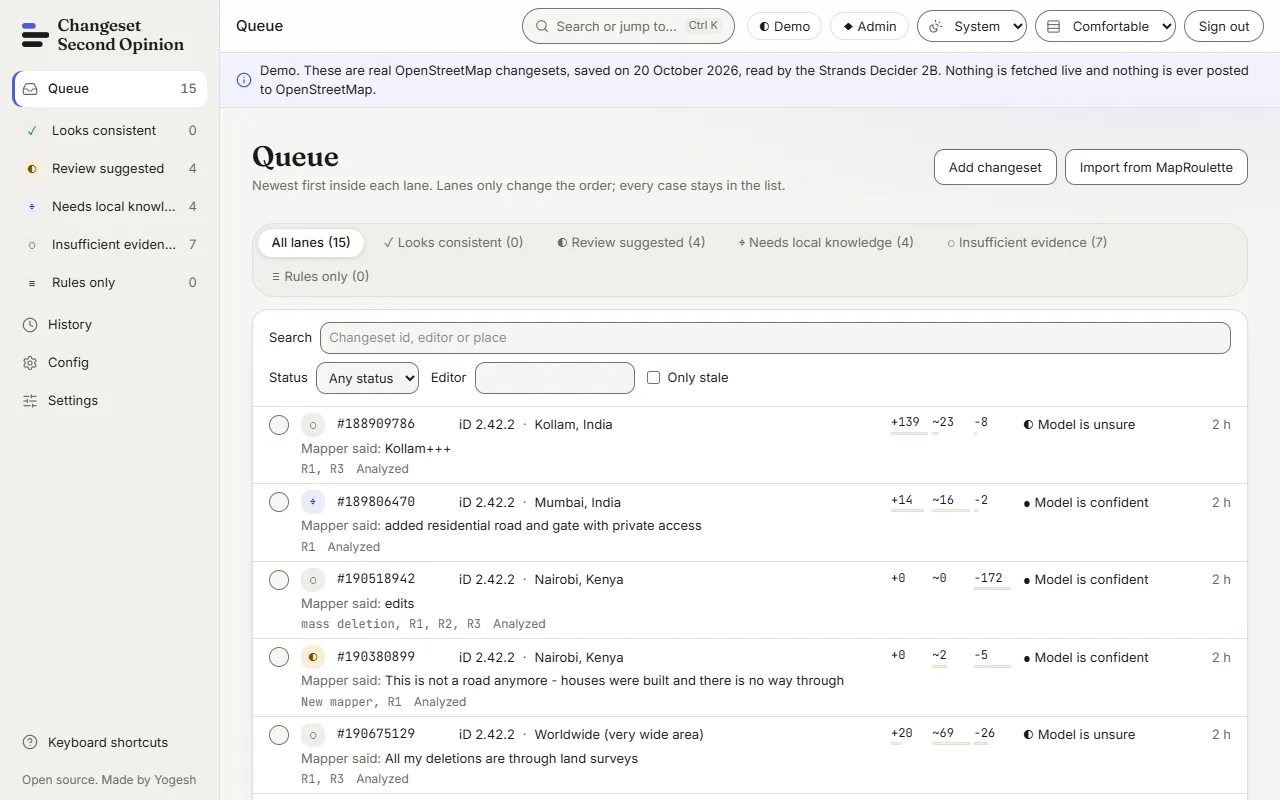
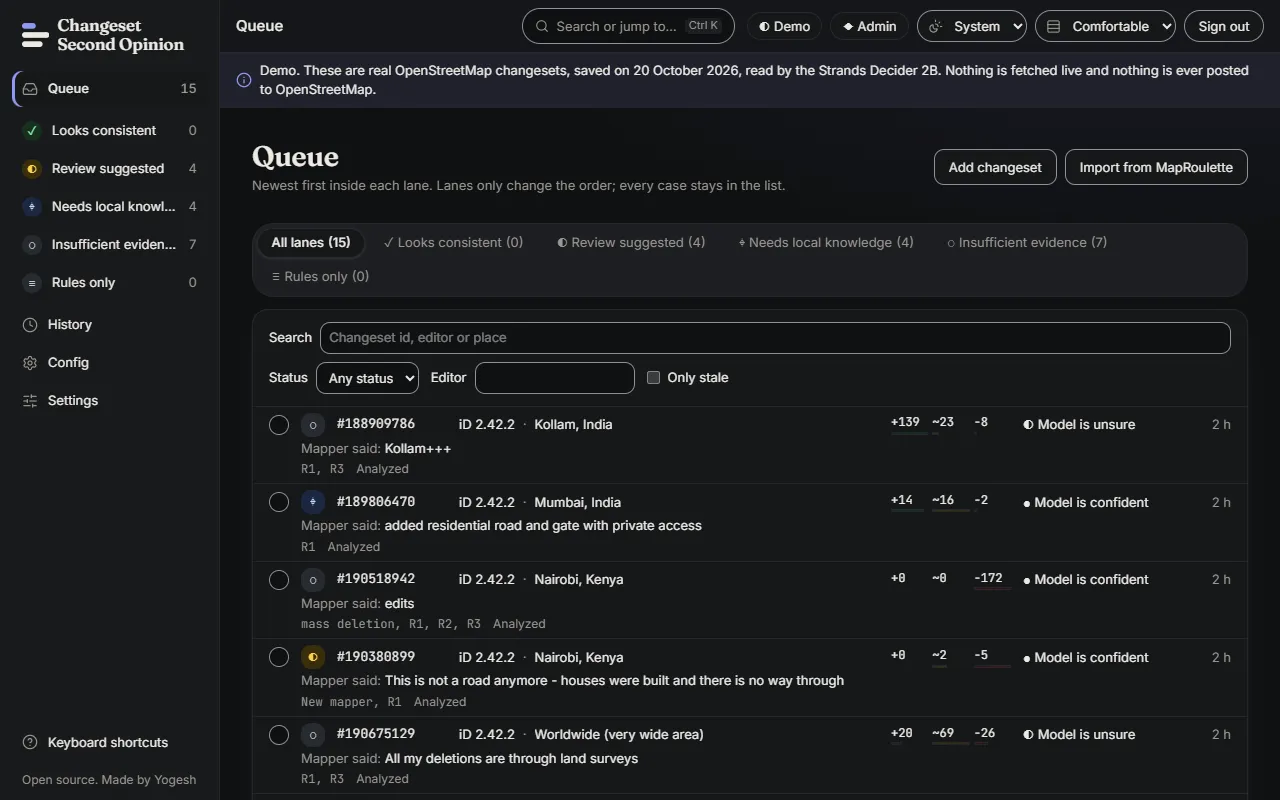
The status of a case is one of Queued, Analyzing, Analyzed or Decided. A case marked Stale has evidence that changed after the last analysis.
Choose a lane
Section titled “Choose a lane”Lanes sort cases by what kind of look they need.
| Lane | What it means |
|---|---|
| Looks consistent | The model was confident that the edit is consistent and no evidence rule fired. |
| Review suggested | A person should look. This is where a case goes when no other lane fits. |
| Needs local knowledge | The edit claims a real-world change that only someone on the ground can check. |
| Insufficient evidence | Too little of the changeset could be read, so the tool cannot say much. |
| Rules only | The model gave no output, so only the rules apply. |
Choose a lane from the tabs or the side bar. All lanes shows everything. Every lane shows its count, including lanes with none.
Search and filter
Section titled “Search and filter”Use the search box above the list. It matches a changeset number, an editor or a place.
Then narrow the list with the filters:
- Status shows only cases in one status.
- Editor shows only edits made with one editor.
- Only stale shows only cases whose evidence changed after the last analysis.
- Clear filters removes them all.
The summary under the list says how many cases are shown out of the total. Choose Load more when more are available.
Mark cases while you work
Section titled “Mark cases while you work”Press x on a row to mark it, and press Escape to clear the marks. A mark is a tick on the row for your own use. It does not change the case and it does not record a decision.
Move with the keyboard
Section titled “Move with the keyboard”Shortcuts work when no text field is focused.
On the queue
Section titled “On the queue”| Key | What it does |
|---|---|
j and k |
Move down and up the list |
o or Enter |
Open the focused case |
x |
Mark or unmark the focused case |
/ |
Go to the search box |
0 |
Show all lanes |
1 to 5 |
Pick a lane in order: Looks consistent, Review suggested, Needs local knowledge, Insufficient evidence, Rules only |
Escape |
Clear marks |
On a case
Section titled “On a case”| Key | What it does |
|---|---|
j and k |
Jump between sections |
n or ] |
Next case in your list |
p or [ |
Previous case in your list |
t |
Switch the tag diff between side by side and unified |
m |
Show or hide the map |
l |
Copy the receipt link |
d |
Go to the draft screen |
a, s, x |
Record Agree, Needs survey or Disagree with model |
u |
Back to the queue |
The next and previous keys follow the list you came from, including its lane and filters.
Everywhere
Section titled “Everywhere”| Key | What it does |
|---|---|
? |
Show the shortcut sheet |
Ctrl and K |
Open the command menu, even while typing |
/ |
Open the command menu on any screen except the queue, where it goes to search |
g then q |
Go to the queue |
g then h |
Go to history |
g then c |
Go to config |
Escape |
Close a dialog |
The command menu also adds a changeset, imports from MapRoulette, toggles the theme and toggles the density. See import changesets.
Look back at decisions
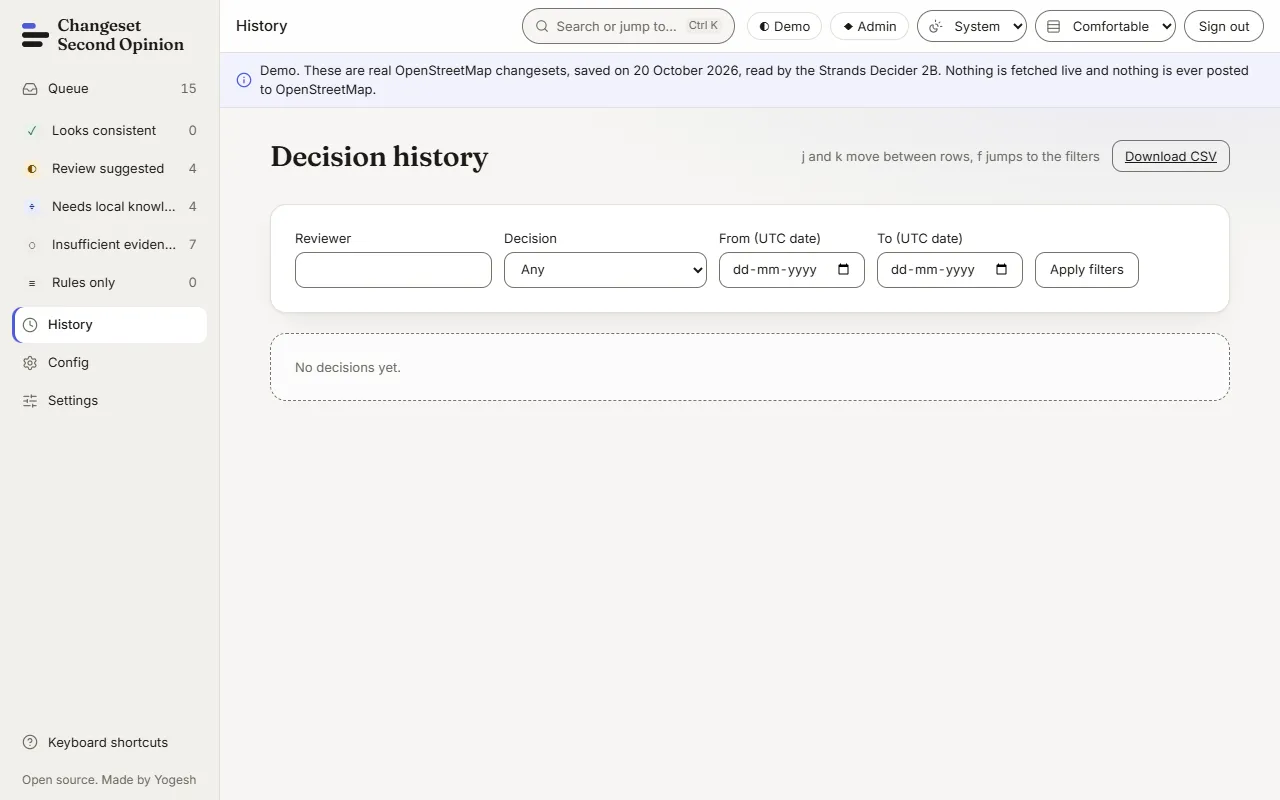
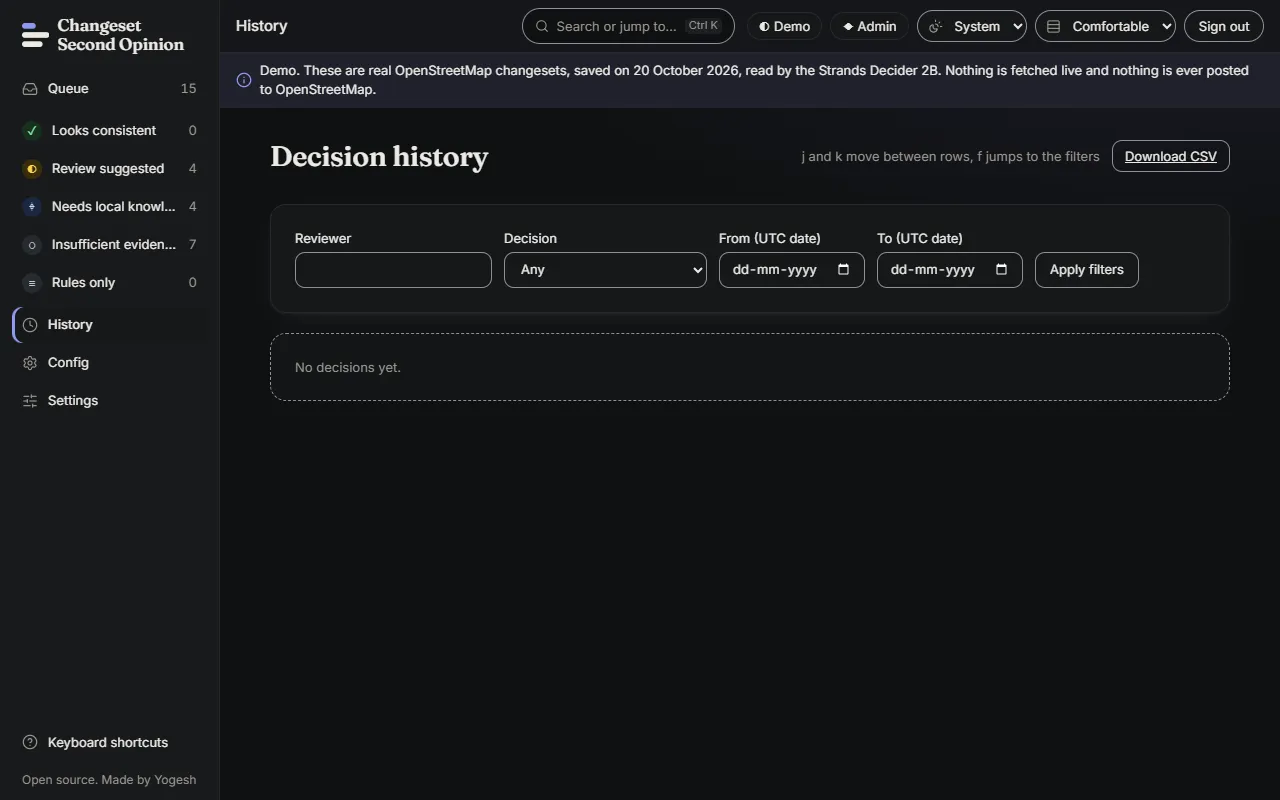
Section titled “Look back at decisions”Open History. It lists the decisions that have been recorded, grouped by day, with the changeset, your name, the lane and band at the time, and the time in UTC.
To narrow the list, fill in Reviewer, Decision, From and To, and choose Apply filters. Use j and k to move between rows and f to jump to the filters. Choose Details on a row to see the note, the final text and the options that were shown at the time. Choose Download CSV to take the list with you.
Check that it worked
Section titled “Check that it worked”The row count in the summary changes when you filter, and the lane tab you chose is highlighted. Choose Clear filters and you see every case again, which is the check that nothing was hidden.
Next, open a case and read it with read the evidence.
Map data © OpenStreetMap contributors, under the Open Database Licence. Code under the Apache-2.0 licence. Made by Yogesh.
Changeset Second Opinion is an independent open source tool for OpenStreetMap reviewers. It is not endorsed by, sponsored by or affiliated with the OpenStreetMap Foundation. OpenStreetMap is a trademark of the OpenStreetMap Foundation, used under itstrademark policy.