
Brand the workspace
For community admins. How-to.
Make the tool carry your community’s name and colour. No rebuild is needed. A change applies to everyone who opens the tool.
What you need first
Section titled “What you need first”- An admin session. See Set up the first admin.
- For a logo: an SVG file up to 32 KB.
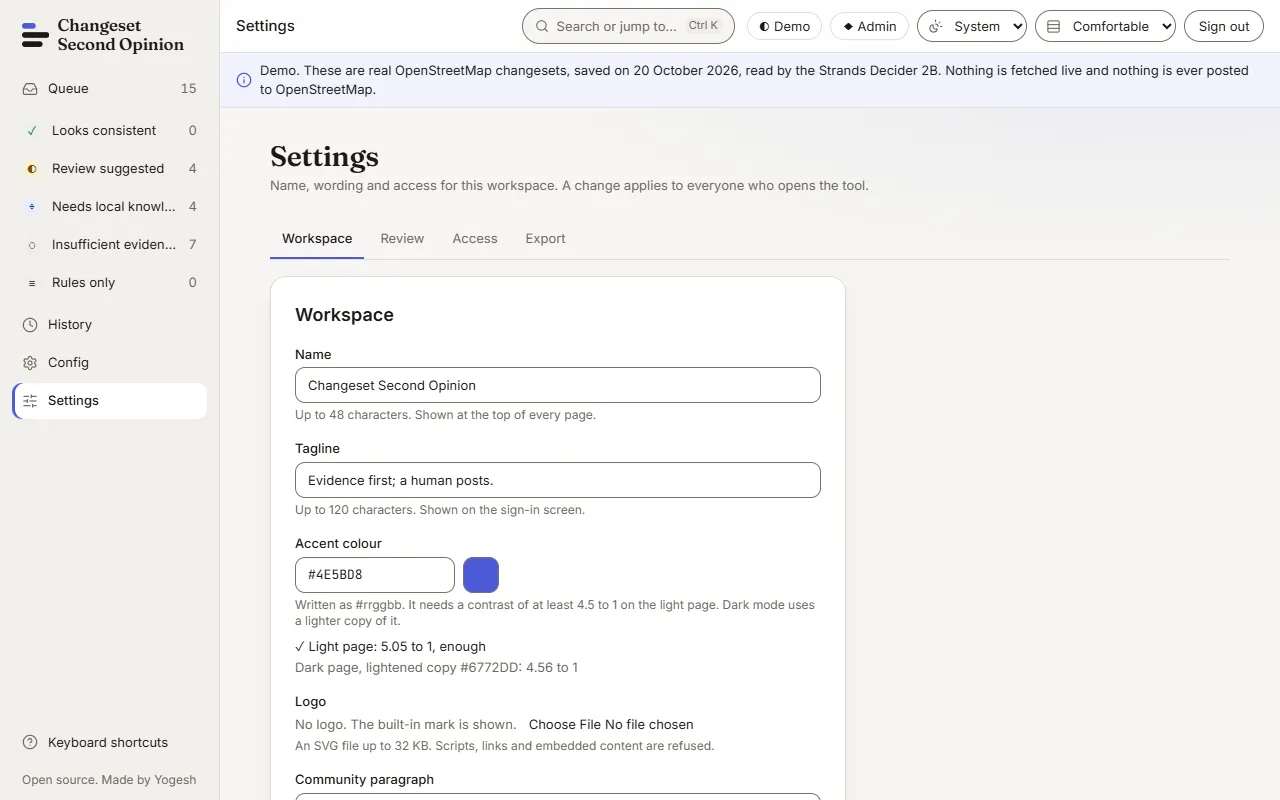
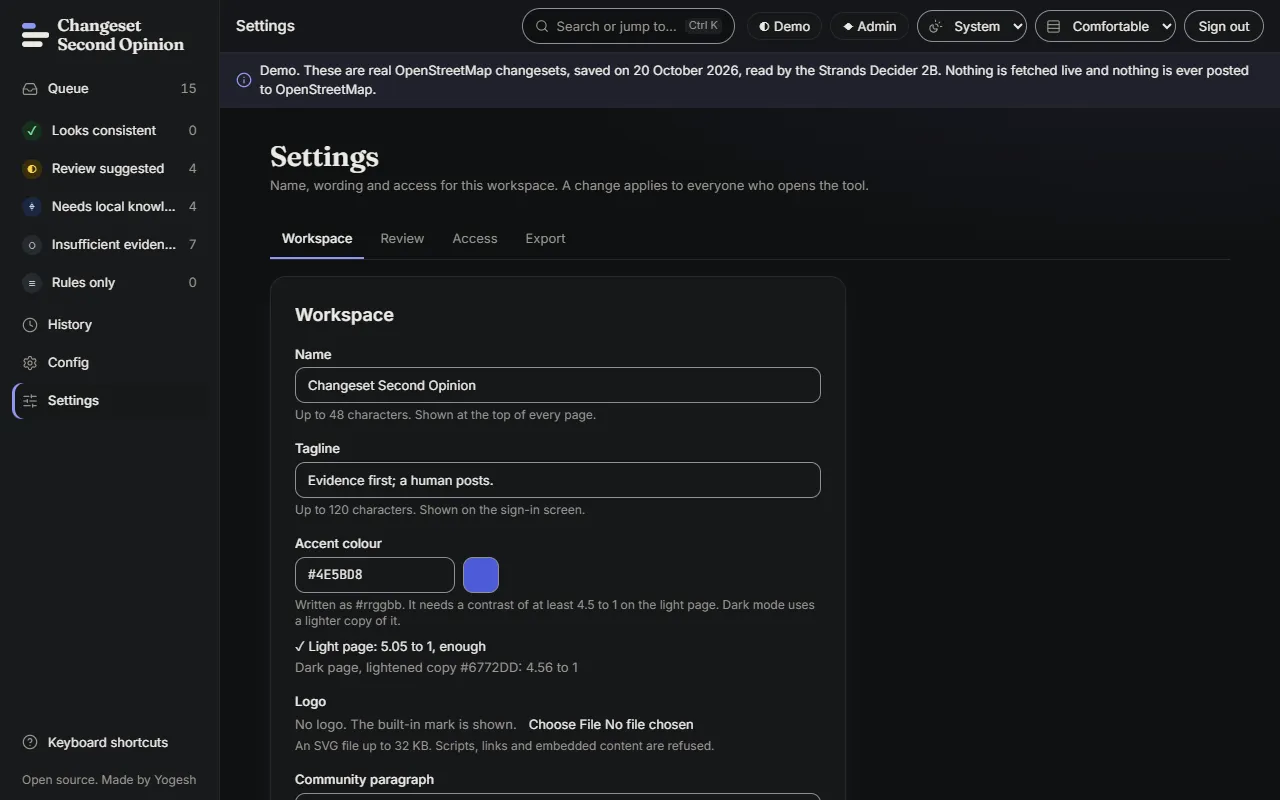
- Open Settings. The Workspace tab is first.
- Change any of these fields:
- Name: up to 48 characters. Shown at the top of every page.
- Tagline: up to 120 characters. Shown on the sign-in screen.
- Accent colour: written as
#rrggbb. It needs a contrast of at least 4.5 to 1 on the light page. The readout under the field shows the ratio. Dark mode uses a lighter copy of your colour, shown as “Dark page, lightened copy”. - Logo: choose an SVG file. Scripts, links and embedded content are refused. Choose Remove logo to go back to the built-in mark.
- Community paragraph: up to 400 characters. Shown on the home page under For communities.
- Choose Save changes. Choose Discard changes to go back to what is saved.
The tool also checks the name, tagline and paragraph against the same list of words the draft checker avoids. A field with such a word is refused, and the list “These fields need attention” links to it.
If the save is refused
Section titled “If the save is refused”- “Someone else changed settings, reload to see their version. Your edits are not saved.” Choose Reload settings, then make your change again. Saves use the version you last saw, so two admins cannot overwrite each other without notice.
- A logo message such as “That file is larger than 32 KB.” or “Choose a file ending in .svg.” Fix the file and choose it again.
Check that it worked
Section titled “Check that it worked”- The name shows at the top of the app after saving, and the message “Settings saved” is announced.
- Open the public home page in a private window. Visitors can take up to five minutes to see the change, because the branding is cached for five minutes.
- The browser’s install name follows the workspace name.
Settings also has an Export tab. It downloads settings.json with the name, wording, accent, logo and sign-in choice. The file holds no invite codes and no secrets.
Next: Tune it to your community.
Map data © OpenStreetMap contributors, under the Open Database Licence. Code under the Apache-2.0 licence. Made by Yogesh.
Changeset Second Opinion is an independent open source tool for OpenStreetMap reviewers. It is not endorsed by, sponsored by or affiliated with the OpenStreetMap Foundation. OpenStreetMap is a trademark of the OpenStreetMap Foundation, used under itstrademark policy.