
Sign in
For community admins. How-to.
Anyone can browse the sample cases without signing in. To draft a comment or record an outcome, a person signs in. There are two ways in, and you can offer both.
What you need first
Section titled “What you need first”- A running workspace. See Install with Docker Compose.
- For the OpenStreetMap button: a registered OpenStreetMap app. See Register the OSM sign-in app.
- For an invite code: an admin account. See Set up the first admin.
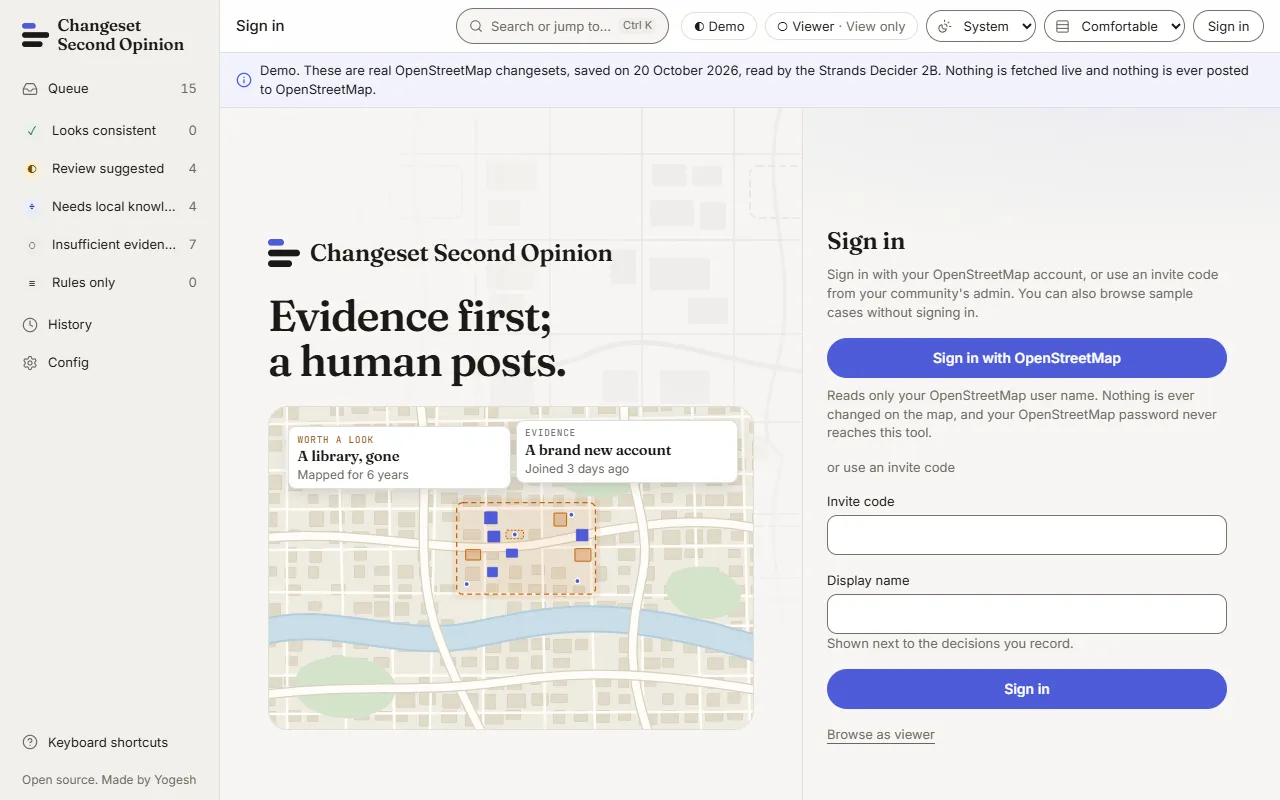
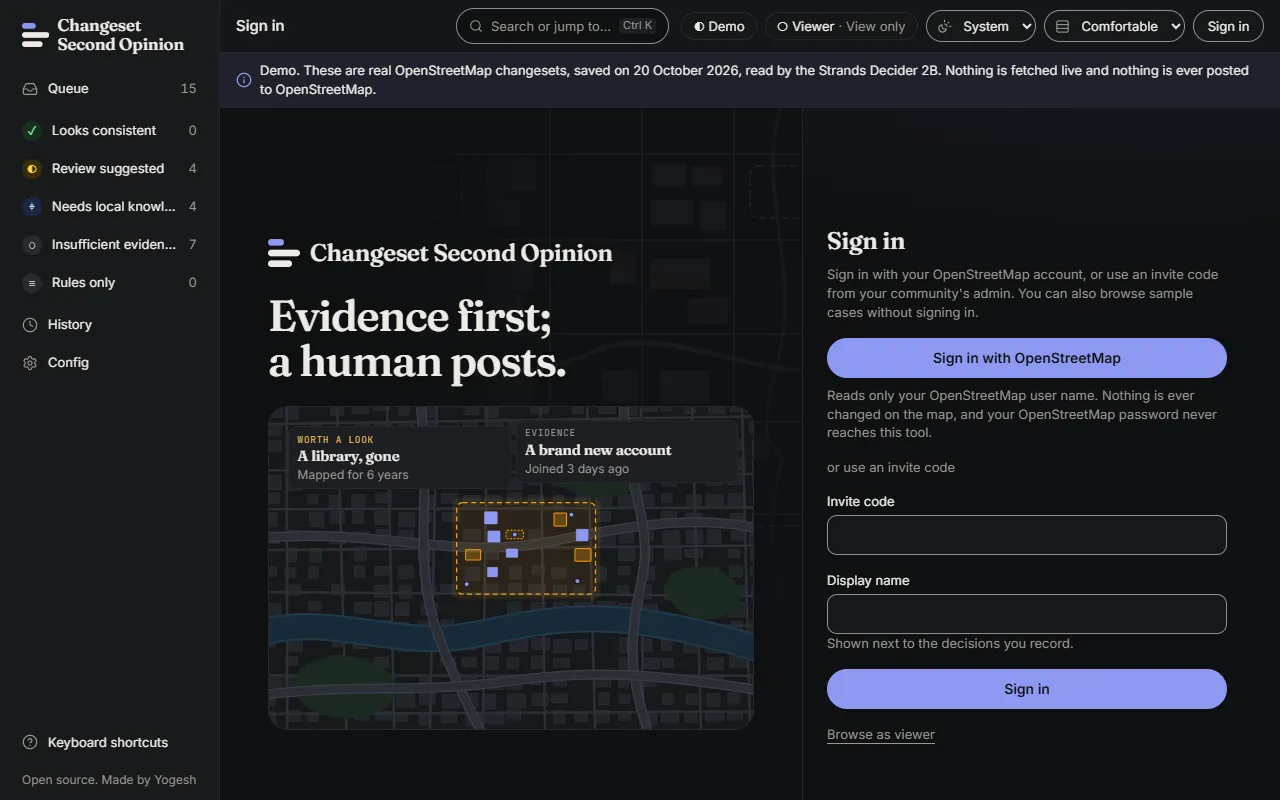
Sign in with OpenStreetMap
Section titled “Sign in with OpenStreetMap”- Open the sign-in page and choose Sign in with OpenStreetMap.
- Approve the read-only request on the OpenStreetMap page.
- You return to the queue, signed in under your OpenStreetMap display name.
The request asks for the read_prefs scope only. The tool reads your user name and nothing else, it cannot change the map, and your OpenStreetMap password never reaches it. The access token is used once and then dropped. Nothing about it is stored.
A person who signs in this way is a reviewer. The one exception is the account the operator named as admin. See Set up the first admin.
If the button is missing, the server has no OpenStreetMap app, or an admin switched it off under Settings, Access. If a sign-in fails, the login page shows a short reason. See Monitor and troubleshoot.
Limit who can sign in
Section titled “Limit who can sign in”By default every OpenStreetMap account can sign in as a reviewer. On a public host, the operator can limit this to a list of OpenStreetMap user ids with CSO_OSM_SIGNIN_ALLOWED_UIDS. An account that is not on the list sees “This OpenStreetMap account is not on the list for this service. Ask an admin for an invite code.” See the settings reference.
Sign in with an invite code
Section titled “Sign in with an invite code”- Ask an admin for a code. See Invite and remove reviewers.
- On the sign-in page, enter the Invite code and a Display name.
- Choose Sign in.
The display name is shown next to the decisions you record. You choose it yourself. The role comes from the code, not from you.
What each role can do
Section titled “What each role can do”| Role | How a person gets it | What they can do |
|---|---|---|
| Viewer | No sign-in | Browse the queue, cases, receipts and the active configuration. View only. |
| Reviewer | OpenStreetMap sign-in, or a reviewer invite code | Everything a viewer can do, plus request drafts and record and correct outcomes. |
| Admin | The named account that claims the workspace, or an admin invite code | Everything a reviewer can do, plus Settings (name, branding, sign-in switch, invite codes), switching community packs and refitting cut points. |
The full table by action is in Roles and permissions.
Sessions
Section titled “Sessions”A session lasts 12 hours and ends after 120 minutes without activity, unless the operator changed CSO_AUTH_SESSION_HOURS or CSO_AUTH_IDLE_MINUTES. Choose Sign out to end it earlier. Signing in again replaces the old session.
After 10 failed attempts from one address in 15 minutes, the page asks the person to wait.
Check that it worked
Section titled “Check that it worked”After signing in, the top bar shows your role next to the mode label, for example Admin, and the Sign out button replaces Sign in. A reviewer sees “Reviewing as” followed by their name.
Next: Invite and remove reviewers.
Map data © OpenStreetMap contributors, under the Open Database Licence. Code under the Apache-2.0 licence. Made by Yogesh.
Changeset Second Opinion is an independent open source tool for OpenStreetMap reviewers. It is not endorsed by, sponsored by or affiliated with the OpenStreetMap Foundation. OpenStreetMap is a trademark of the OpenStreetMap Foundation, used under itstrademark policy.