
Review your first changeset
For reviewers. Tutorial.
In this tutorial you review two cases on the demo data. You open a case, read the evidence, look at the suggested response, write and check a draft comment, and record a decision. When you finish, your decision shows up in the history.
You need the demo running. If it is not, do the quickstart first.
Two things to keep in mind as you go. The tool never writes to OpenStreetMap, so nothing you do here changes the map. And lanes only order the queue: every case stays in the list, nothing closes by itself and nothing is posted by itself.
1. Sign in as a reviewer
Section titled “1. Sign in as a reviewer”Open the sign-in page. Enter the invite code that cso auth create-invite printed, add a display name, and choose Sign in. The display name is shown next to the decisions you record.
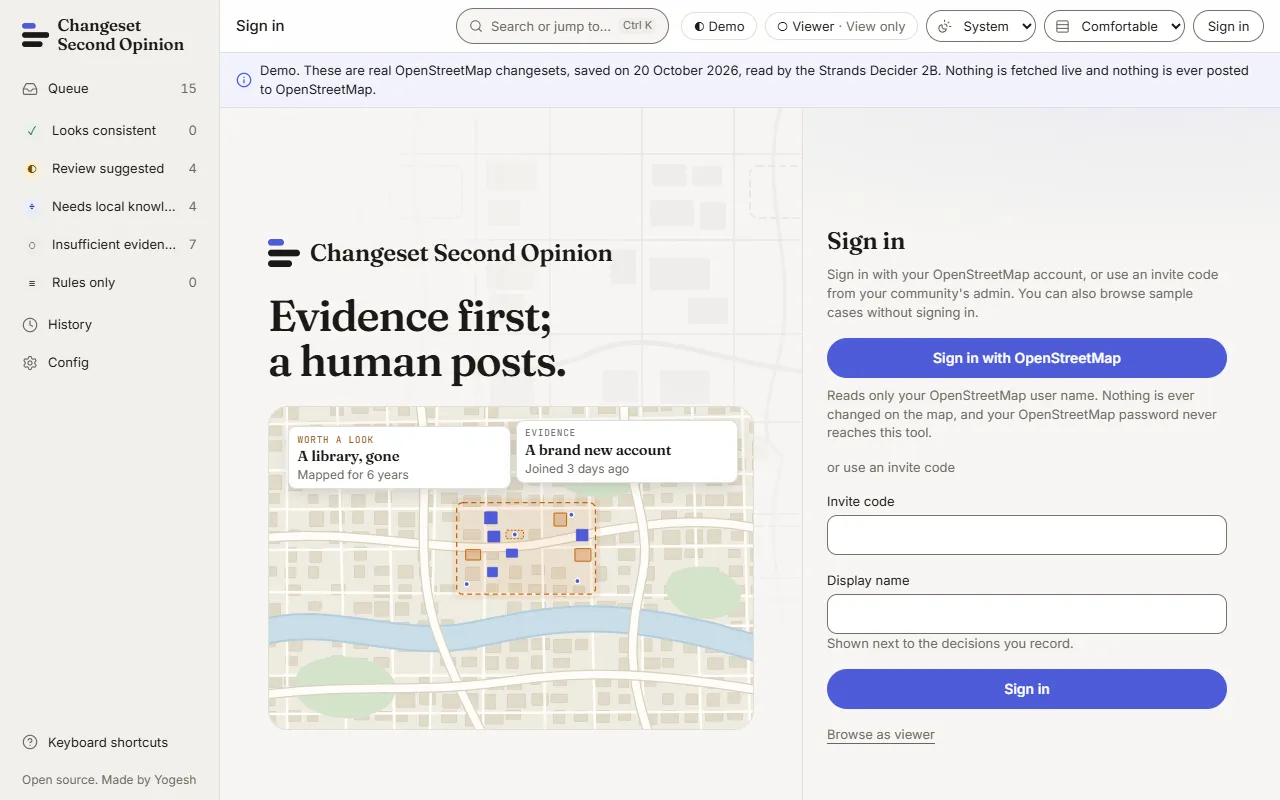
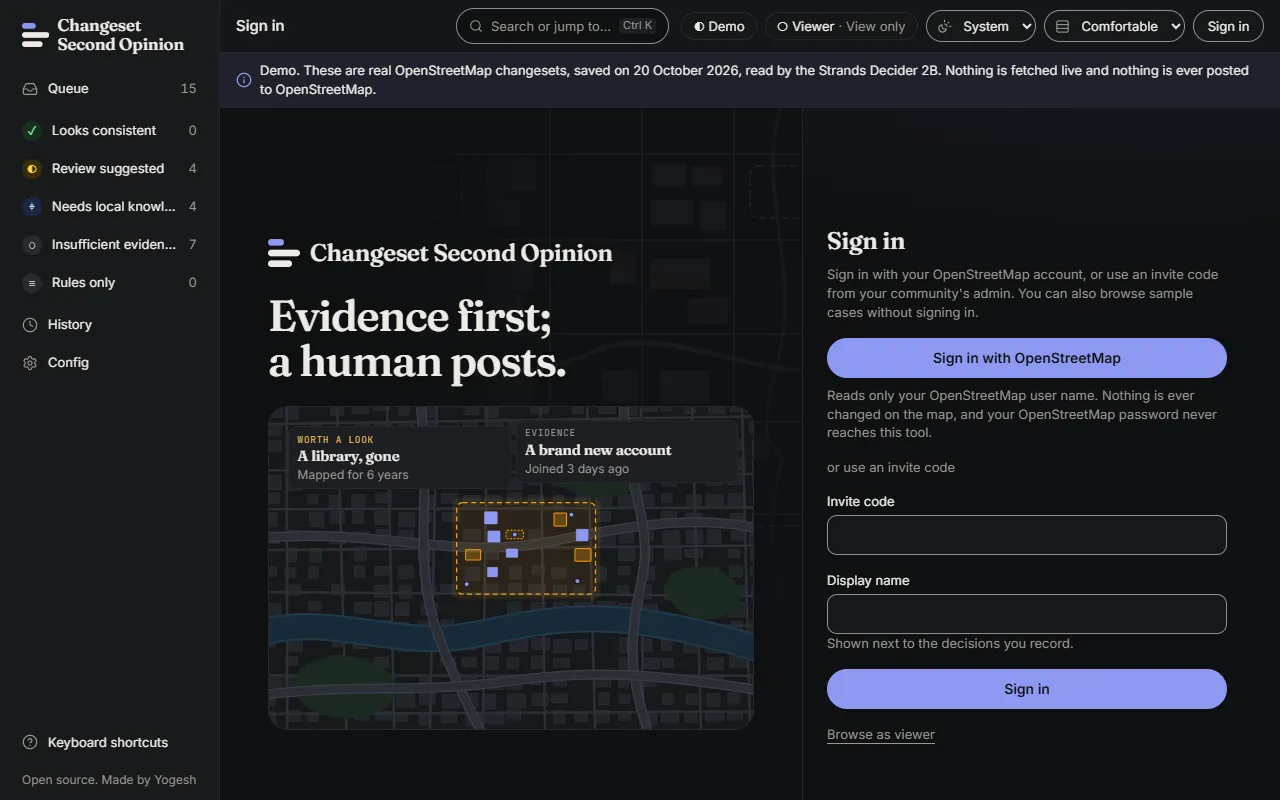
The top bar now shows your role instead of Viewer. The queue and the cases are the same as before.
2. Open a case from the queue
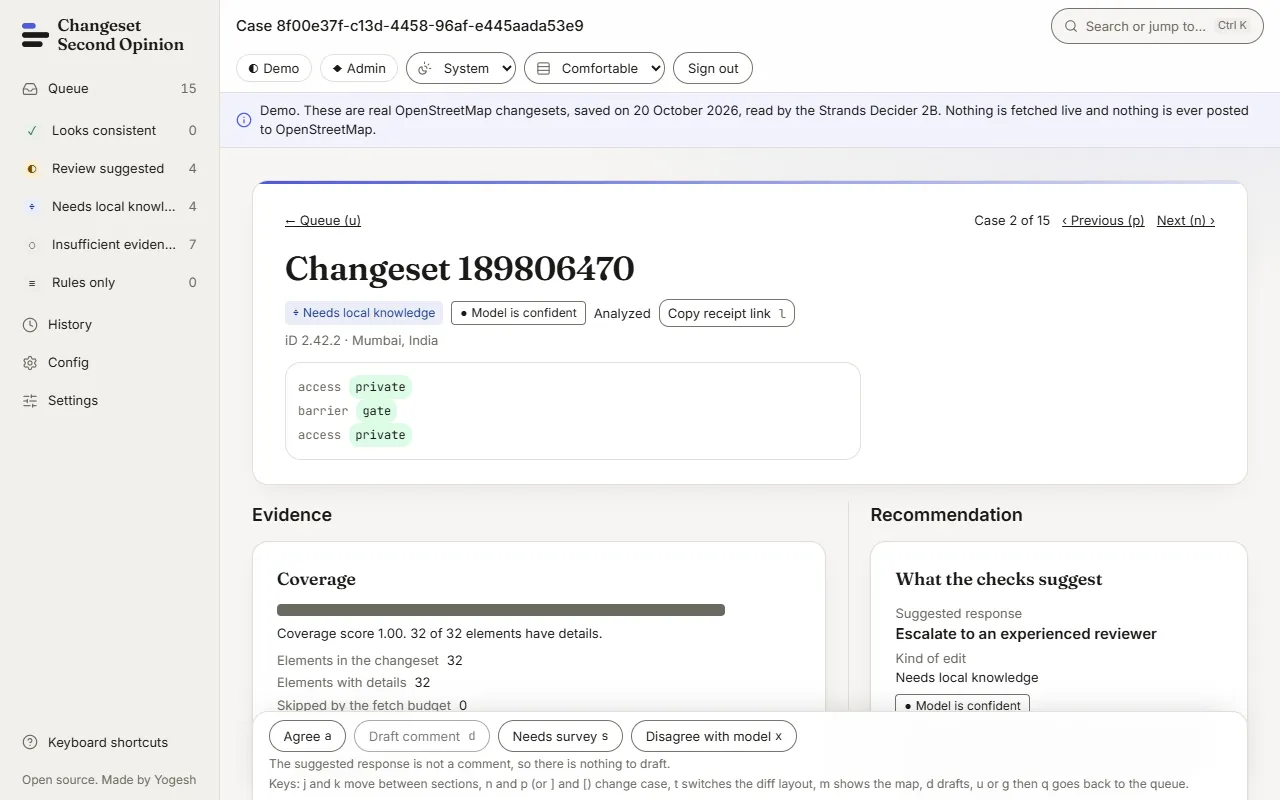
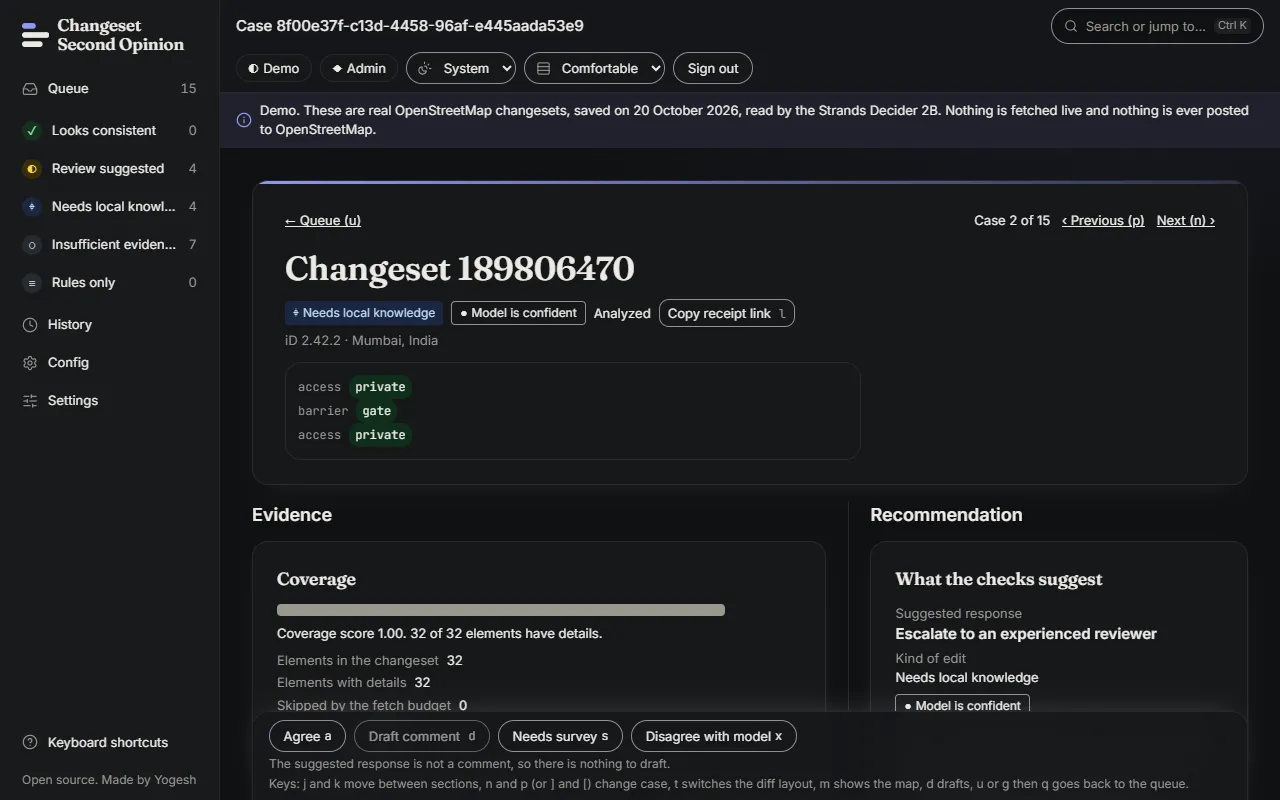
Section titled “2. Open a case from the queue”Go to the queue. Choose the Needs local knowledge lane, either from the tabs or by pressing 3. Open changeset 189806470.
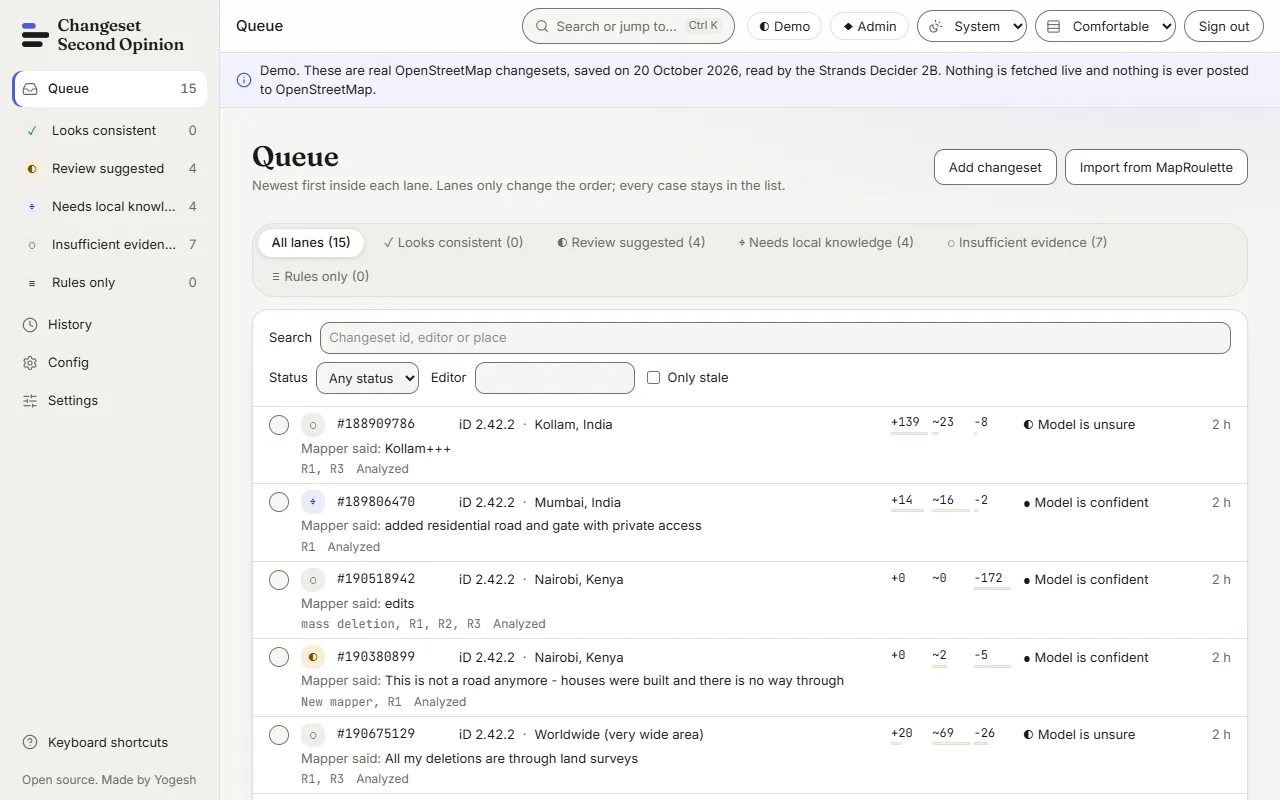
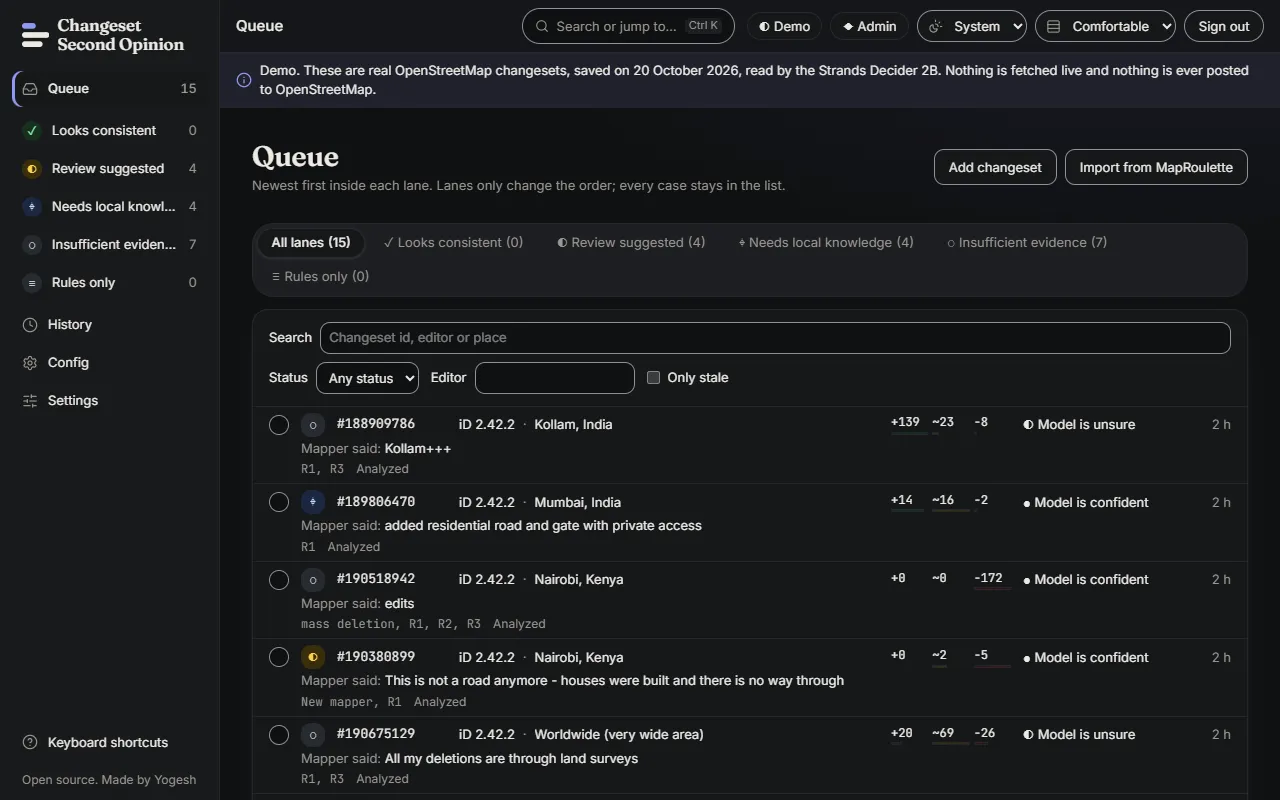
The row tells you a few things before you open it. The mapper said “added residential road and gate with private access”. The place is Mumbai, India. A flag, R1, is shown below the comment.
3. Read the top of the case
Section titled “3. Read the top of the case”The top of the case names the changeset and shows its lane and band. Below them is the evidence strip: the tag changes in this edit, as they were before and after. Here it shows access private and barrier gate.
4. Read the evidence
Section titled “4. Read the evidence”Scroll the left column. Each block is plain text, and you can jump from block to block with j and k.
- Coverage tells you how much of the changeset the tool could read. Here, 32 of 32 elements have details, so nothing was skipped. A low coverage score is the first thing to check when a lane says Insufficient evidence.
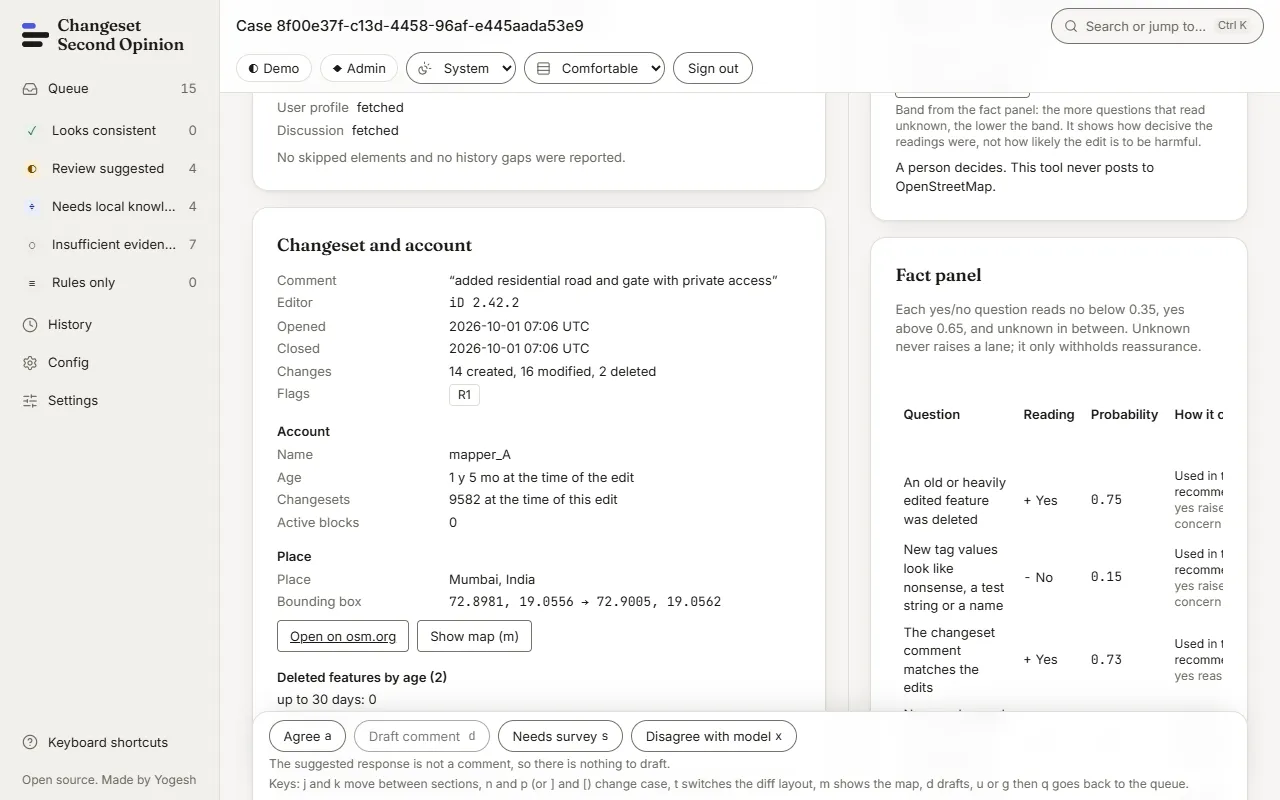
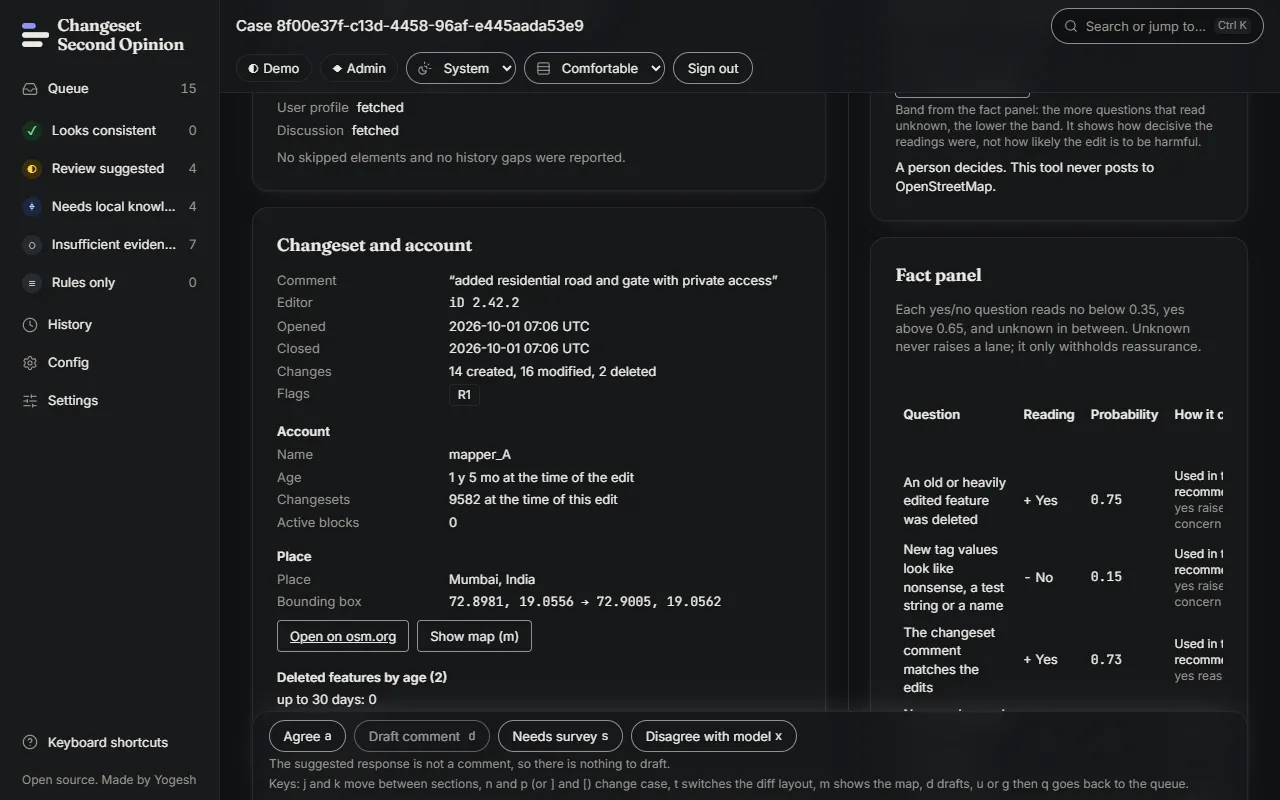
- Changeset and account shows the mapper’s comment, the editor, the times, the counts of created, modified and deleted elements, and the account’s age and changeset count at the time of the edit.
- Place shows the bounding box. Choose Show map (or press
m) to see it on a map, and Open on osm.org to open the changeset on OpenStreetMap in your own browser tab. - Deleted features by age and Tag changes show what was removed and what changed, element by element.
5. Read the recommendation
Section titled “5. Read the recommendation”The right column starts with What the checks suggest. The suggested response here is Escalate to an experienced reviewer, and the kind of edit is Needs local knowledge. The band says Model is confident, which means the answers were decisive. It does not say how likely the edit is to be harmful.
Scroll to the Fact panel. It lists ten questions. For each one you see the reading (yes, no or unknown) and a probability. The probability is the one the model gave to yes. For the first question, “An old or heavily edited feature was deleted”, the reading is Yes with a probability of 0.75, so 0.25 went to no.
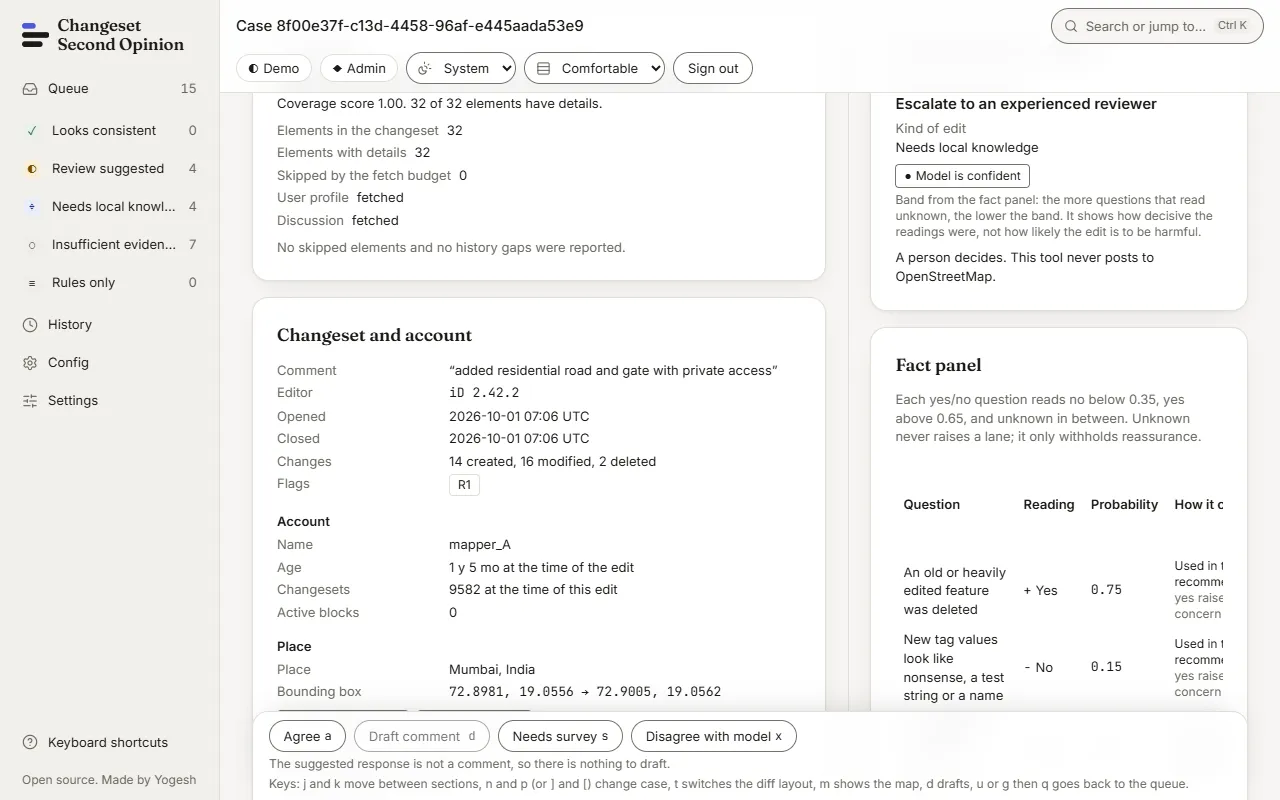
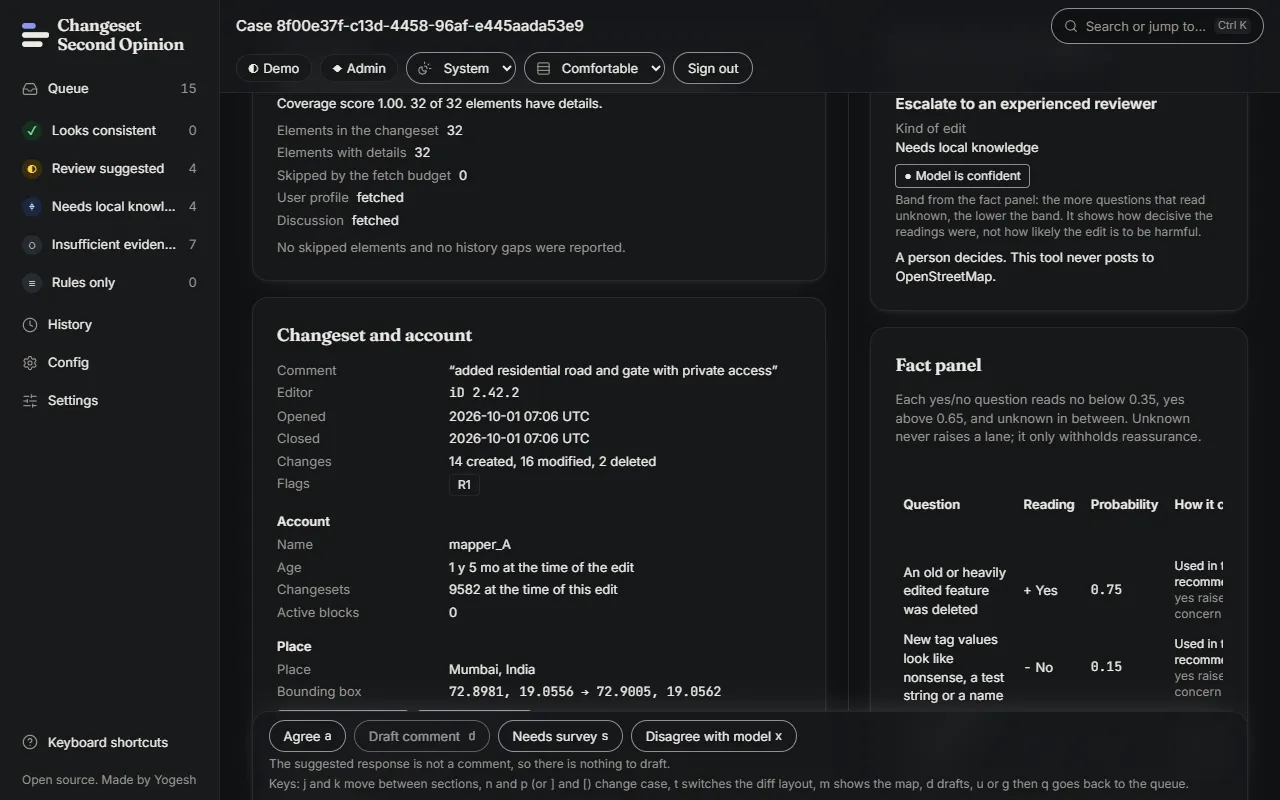
Further down, Rules that fired lists R1, the mature deletion rule. It is based on parsed evidence: a feature older than a year, or with five or more earlier versions, was deleted. That rules out a Looks consistent lane and a no-action response.
For more on each question, see read the evidence.
6. Try to draft, then record a decision
Section titled “6. Try to draft, then record a decision”Look at the action bar along the bottom. Draft comment is greyed out, and the text above the bar says “The suggested response is not a comment, so there is nothing to draft.” Escalating to an experienced reviewer is a decision for a person, not a message to send, so this case has no draft.
Record your decision instead. Choose Agree (or press a). A dialog opens. Add a short note if you like, for example “Passing this to a local reviewer who knows Mumbai”. Choose Record decision.
A line appears that reads “Latest decision: Agreed by” followed by your name and the time. Recording adds a new entry, and earlier entries are never changed.
7. Write a draft on a second case
Section titled “7. Write a draft on a second case”Press u to go back to the queue. Open a case where Draft comment is available. The draft screenshot in these docs was taken on changeset 190761641. If that button is greyed out on the case you open, try another.
Choose Draft comment (or press d). The page offers the kind of comment the case allows, with the recommended kind marked. Choose Write a draft and wait a few seconds.
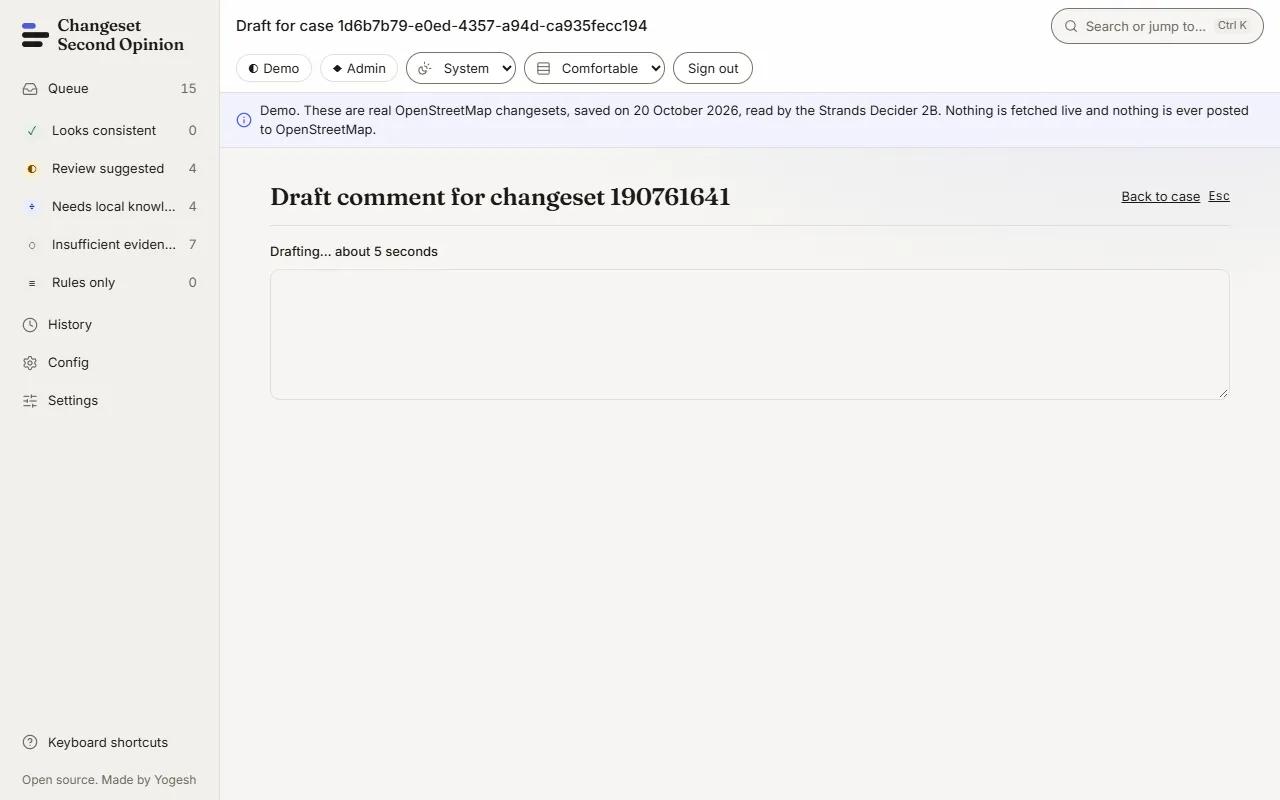
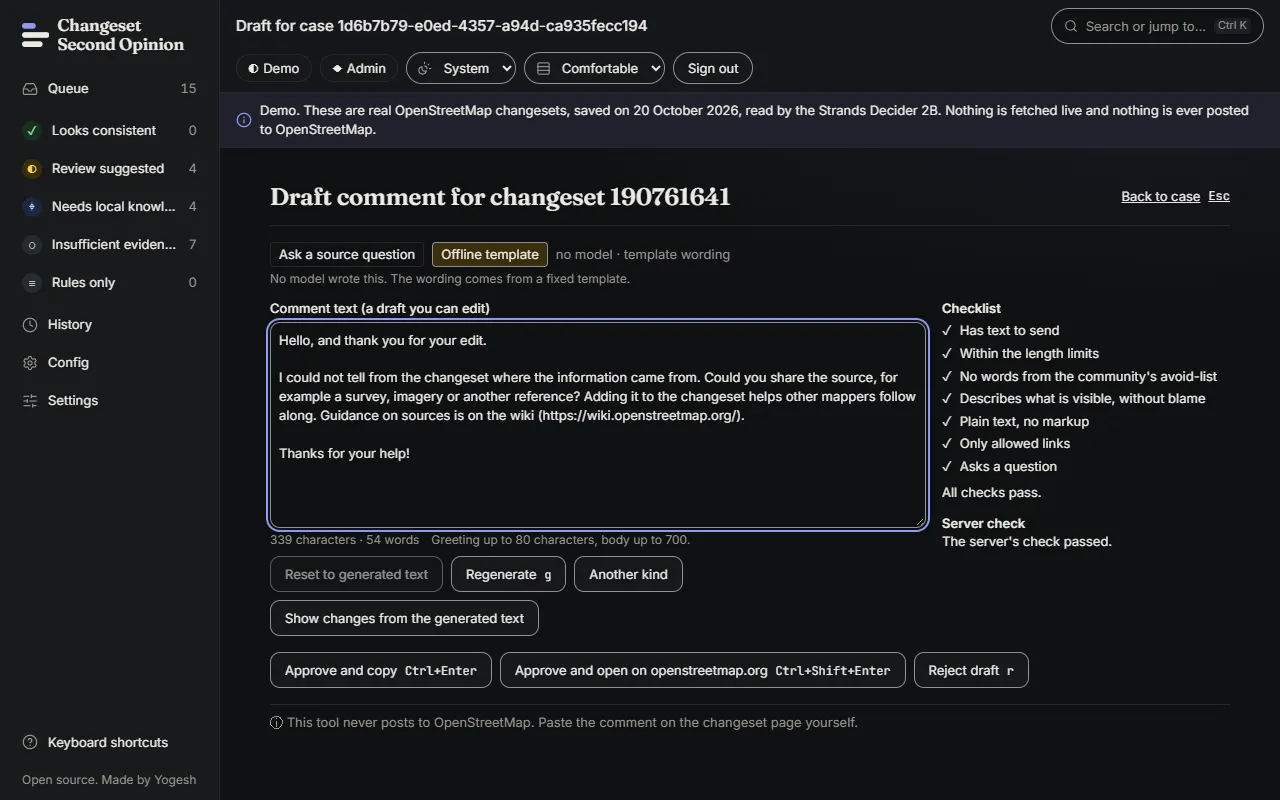
The draft appears in a text area. On the demo, no model writes it: a badge says Offline template and explains that the wording comes from a fixed template. The checklist under the text shows whether the draft meets the rules, for example that it asks a question and describes what is visible without blame.
Edit the text so it sounds like you. When the checklist says “All checks pass.”, choose Approve and copy. The text is copied and your decision is recorded. The tool does not post it. To send it, paste it on the changeset page on openstreetmap.org yourself. See draft and send a comment.
8. Check that it worked
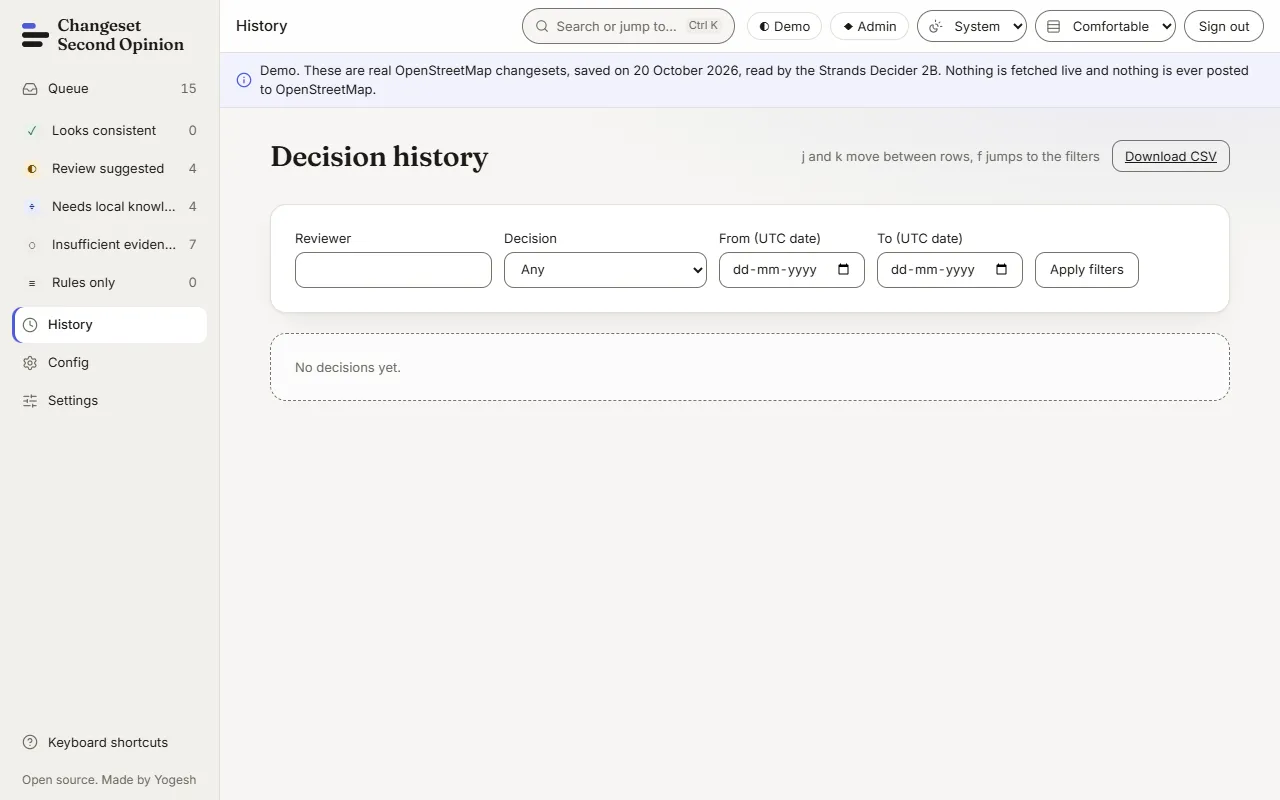
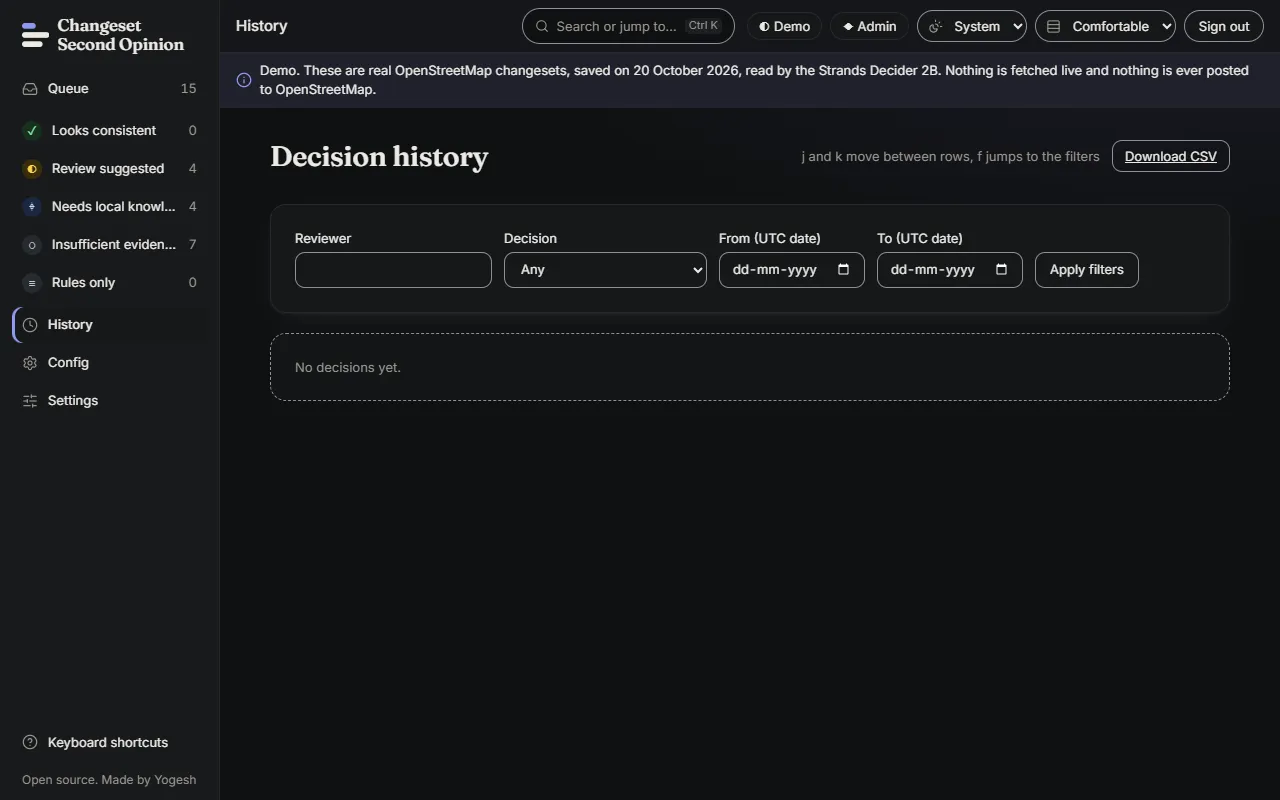
Section titled “8. Check that it worked”Open History from the side bar, or press g then h. Your two decisions are listed with the changeset, the lane and band at the time, your name and the time in UTC.
Where to go next
Section titled “Where to go next”Learn how to find the cases that matter most in work the queue.
Map data © OpenStreetMap contributors, under the Open Database Licence. Code under the Apache-2.0 licence. Made by Yogesh.
Changeset Second Opinion is an independent open source tool for OpenStreetMap reviewers. It is not endorsed by, sponsored by or affiliated with the OpenStreetMap Foundation. OpenStreetMap is a trademark of the OpenStreetMap Foundation, used under itstrademark policy.