
Display and accessibility
For reviewers. How-to.
This guide shows how to set the tool up so it is comfortable to read and to use. None of these settings changes what the tool does. It never writes to OpenStreetMap, and lanes only order the queue, however you set the display.
You need the app open in your browser. You do not need to be signed in.
Change the theme
Section titled “Change the theme”The theme can be System, Light or Dark.
- In the top bar, open the Theme menu.
- Choose System to follow your device, or choose Light or Dark.
Or open the command menu with Ctrl and K and choose Toggle theme.
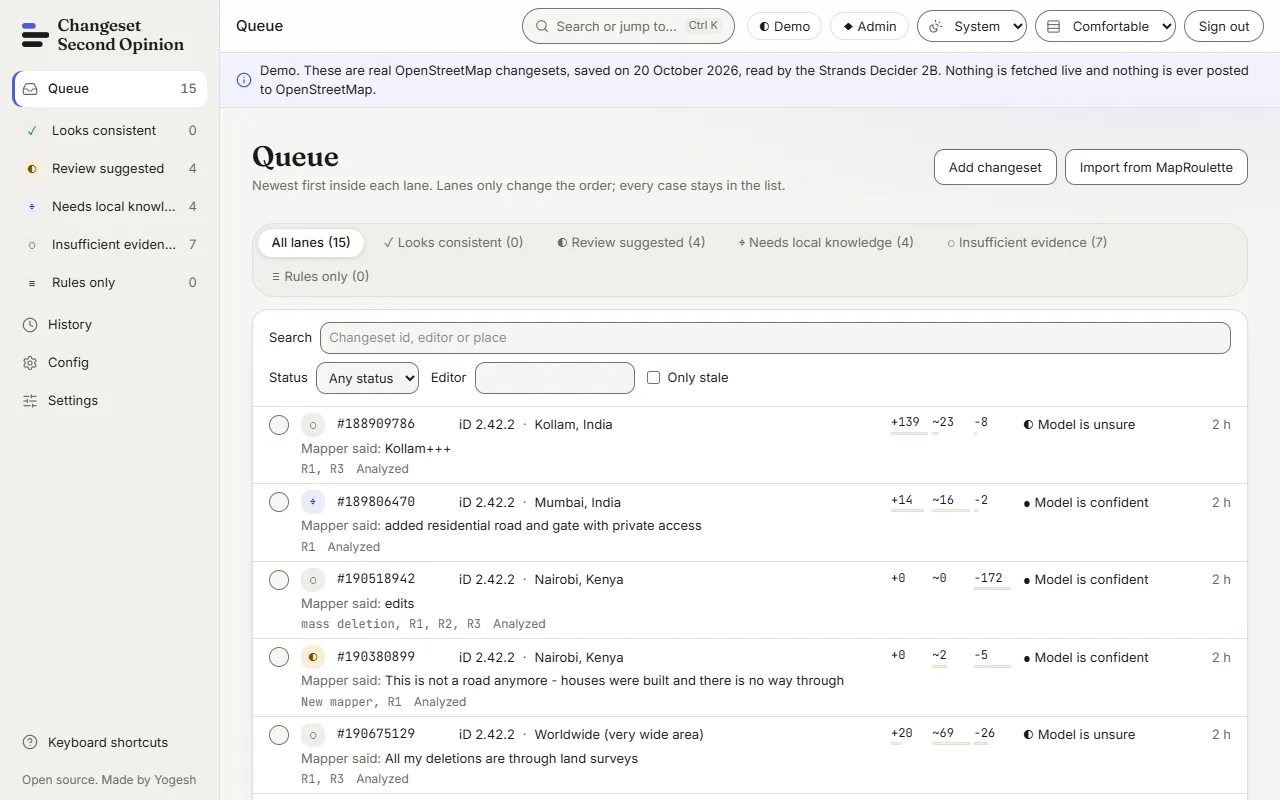
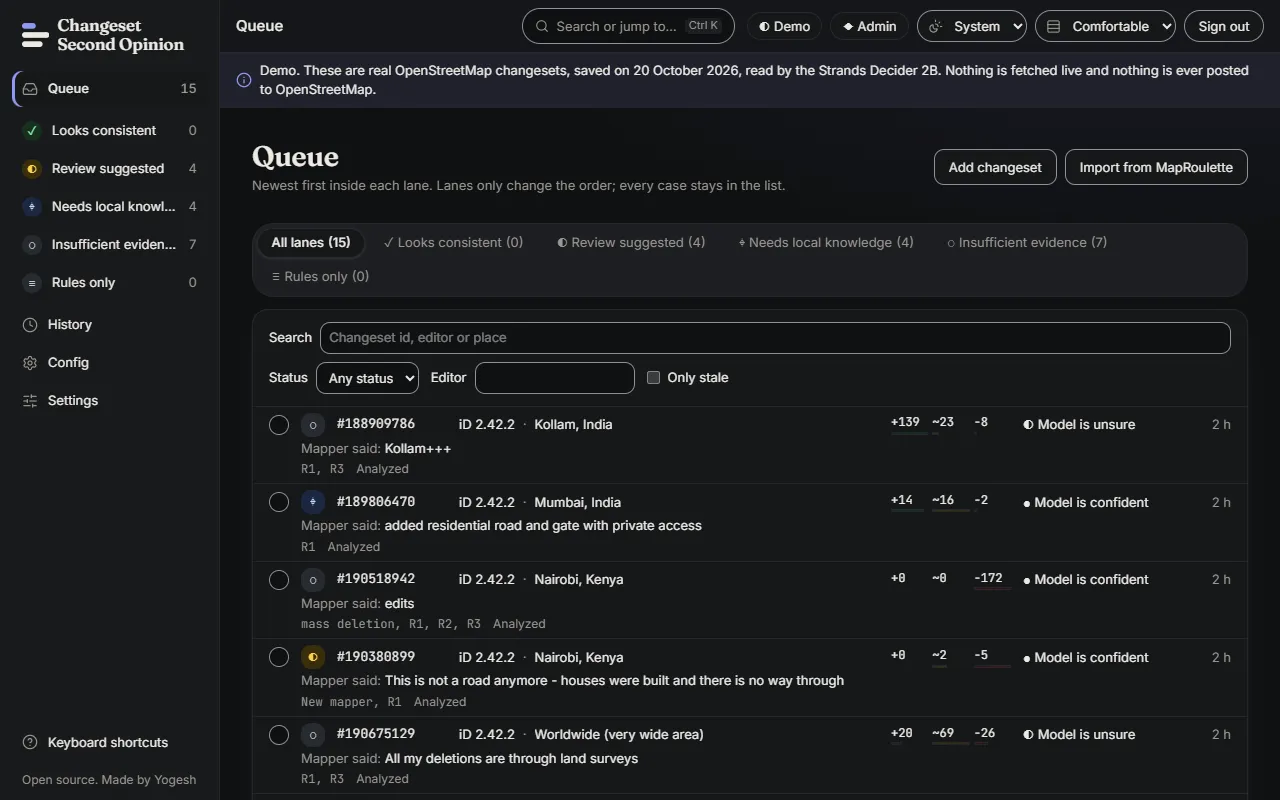
Change the density
Section titled “Change the density”Density can be Comfortable or Compact. Compact fits more rows on the screen.
- In the top bar, open the Density menu.
- Choose Comfortable or Compact.
Or choose Toggle density in the command menu.
Both choices are stored in your browser, so each browser and each device remembers its own. If your browser blocks site storage, the choice works for the visit and is not remembered.
Work from the keyboard
Section titled “Work from the keyboard”Every action in the app can be reached from the keyboard.
- Press
?to open the shortcut sheet. Shortcuts work when no text field is focused. - Press
CtrlandKto open the command menu. It works even while you type. Use the arrow keys to move,Enterto run a command andEscapeto close it. - Use the Skip to main content link, the first link on each page, to jump past the side bar.
- On a case, drag the divider between the evidence and the recommendation, or focus it and use the left and right arrow keys.
HomeandEndmove it to either end.
The full list of keys is in work the queue.
Screen readers
Section titled “Screen readers”Changes are announced in a live region called “Announcements”. For example, the app announces which case is selected, how many cases a lane holds, when a theme or density changes, and when a decision is recorded. Tables have captions, and scrollable regions are labelled.
Lanes use a symbol and a text label as well as colour, so colour is never the only signal.
Reduce motion
Section titled “Reduce motion”Public pages, such as the home page, use scroll animation. They follow your device’s reduced-motion setting. The footer of those pages also has a Less motion switch that does the same for this site only and is remembered in your browser. Choose Full motion in the same place to turn the animation back on.
The signed-in app has no switch of its own. It follows your device’s reduced-motion setting.
Check that it worked
Section titled “Check that it worked”The page changes as soon as you choose. Reload the page: the theme and density stay as you left them. Open the shortcut sheet with ? and close it with Escape to confirm the keyboard path works.
Next, if you run a workspace, you can change its name and accent colour in brand the workspace.
Map data © OpenStreetMap contributors, under the Open Database Licence. Code under the Apache-2.0 licence. Made by Yogesh.
Changeset Second Opinion is an independent open source tool for OpenStreetMap reviewers. It is not endorsed by, sponsored by or affiliated with the OpenStreetMap Foundation. OpenStreetMap is a trademark of the OpenStreetMap Foundation, used under itstrademark policy.